> ## Documentation Index
> Fetch the complete documentation index at: https://docs.starfort.io/llms.txt
> Use this file to discover all available pages before exploring further.
# Agent Users
> Manage the employees registered to run the Desktop Agent.
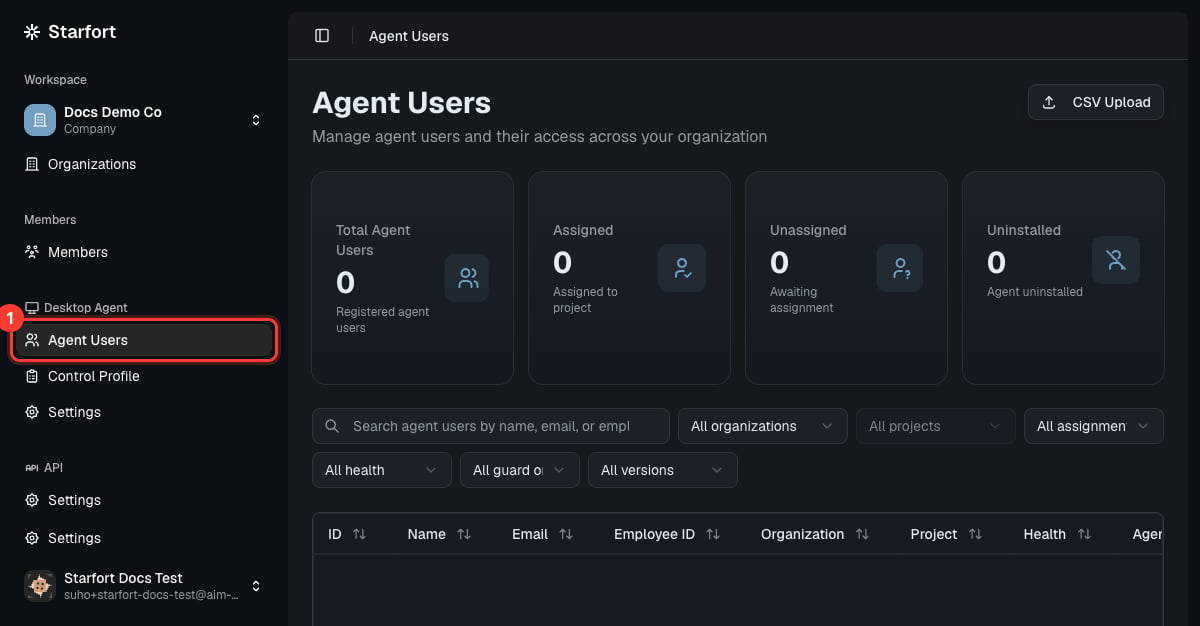
**Agent Users** are the employees registered to run the [Desktop Agent](/en/v1.2/desktop/how-it-works) under your company. Open **Desktop Agent › Agent Users** to manage them.
 ## How users register
Employees register their Agent with the **Company Access Key** (issued in [Desktop Agent settings](/en/v1.2/admin/desktop-agent-settings)) — see [Register the Desktop Agent](/en/v1.2/desktop/register). Each device is identified by the Company Access Key plus an **Agent ID** the Agent generates for itself on first run. Newly registered users appear here as **Unassigned**, where you assign them to a project.
## Assign users
Select one or more Unassigned users, fill in the mapping — name, email, employee ID, organization, project — **in a batch or one at a time**, and assign them to a project. From that moment the project's [Control Profiles](/en/v1.2/admin/control-profiles) apply automatically; there's no separate permission step.
Within a company, an Agent User's **email** and **employee ID** must each be unique.
## What the modes mean
Each Agent User shows a **mode** (derived from whether it's assigned and whether you've paused it):
| Mode (label) | When | What the Agent does |
| --------------------- | ---------------------------------------------------- | --------------------------------------------------------------------------------------------------------------------------------------------------------------- |
| **Unassigned** (Off) | Registered, not yet assigned to a project | **Blocks** every endpoint defined in the company's Control Profiles — controlled services can't be reached until you assign the device. No traces are recorded. |
| **Assigned** (On) | Assigned to a project | Enforces the project's Guard Policies normally, and records traces. |
| **Inactive** (Paused) | You explicitly paused it (optionally for a set time) | **Passes** all requests — Guard is off. No traces. Auto-resumes when the timer expires. |
Separately, a **Health** indicator (Online / Offline / Uninstalled) shows the device's connectivity — independent of its mode.
## Remove a user
* **Self-deregister** — when a user uninstalls the Agent (via the Uninstaller), the device is removed, its slot is reclaimed against the count limit, and its token is invalidated. Health becomes **Uninstalled**.
* **Hard Delete** — you can permanently remove an Agent User yourself, in any state — useful for a lost/retired device or a GDPR cleanup. It reclaims the slot and invalidates the token.
Both are recorded in the [Audit Log](/en/v1.2/admin/audit-log). On **reinstall**, a device that kept its Agent ID revives the same record; one that lost it registers as a new Agent User you'll need to assign again.
## Limits
The number of Agent Users is capped by the company's **Agent User Count Limit**, configured in [Desktop Agent settings](/en/v1.2/admin/desktop-agent-settings). Reaching the limit blocks new registrations.
## How users register
Employees register their Agent with the **Company Access Key** (issued in [Desktop Agent settings](/en/v1.2/admin/desktop-agent-settings)) — see [Register the Desktop Agent](/en/v1.2/desktop/register). Each device is identified by the Company Access Key plus an **Agent ID** the Agent generates for itself on first run. Newly registered users appear here as **Unassigned**, where you assign them to a project.
## Assign users
Select one or more Unassigned users, fill in the mapping — name, email, employee ID, organization, project — **in a batch or one at a time**, and assign them to a project. From that moment the project's [Control Profiles](/en/v1.2/admin/control-profiles) apply automatically; there's no separate permission step.
Within a company, an Agent User's **email** and **employee ID** must each be unique.
## What the modes mean
Each Agent User shows a **mode** (derived from whether it's assigned and whether you've paused it):
| Mode (label) | When | What the Agent does |
| --------------------- | ---------------------------------------------------- | --------------------------------------------------------------------------------------------------------------------------------------------------------------- |
| **Unassigned** (Off) | Registered, not yet assigned to a project | **Blocks** every endpoint defined in the company's Control Profiles — controlled services can't be reached until you assign the device. No traces are recorded. |
| **Assigned** (On) | Assigned to a project | Enforces the project's Guard Policies normally, and records traces. |
| **Inactive** (Paused) | You explicitly paused it (optionally for a set time) | **Passes** all requests — Guard is off. No traces. Auto-resumes when the timer expires. |
Separately, a **Health** indicator (Online / Offline / Uninstalled) shows the device's connectivity — independent of its mode.
## Remove a user
* **Self-deregister** — when a user uninstalls the Agent (via the Uninstaller), the device is removed, its slot is reclaimed against the count limit, and its token is invalidated. Health becomes **Uninstalled**.
* **Hard Delete** — you can permanently remove an Agent User yourself, in any state — useful for a lost/retired device or a GDPR cleanup. It reclaims the slot and invalidates the token.
Both are recorded in the [Audit Log](/en/v1.2/admin/audit-log). On **reinstall**, a device that kept its Agent ID revives the same record; one that lost it registers as a new Agent User you'll need to assign again.
## Limits
The number of Agent Users is capped by the company's **Agent User Count Limit**, configured in [Desktop Agent settings](/en/v1.2/admin/desktop-agent-settings). Reaching the limit blocks new registrations.