

- as an API endpoint (
POST /v1/guard/{api-id}/analyze) forFOR_APIprojects, or - via the Desktop Agent for
FOR_DESKTOP_APPprojects.
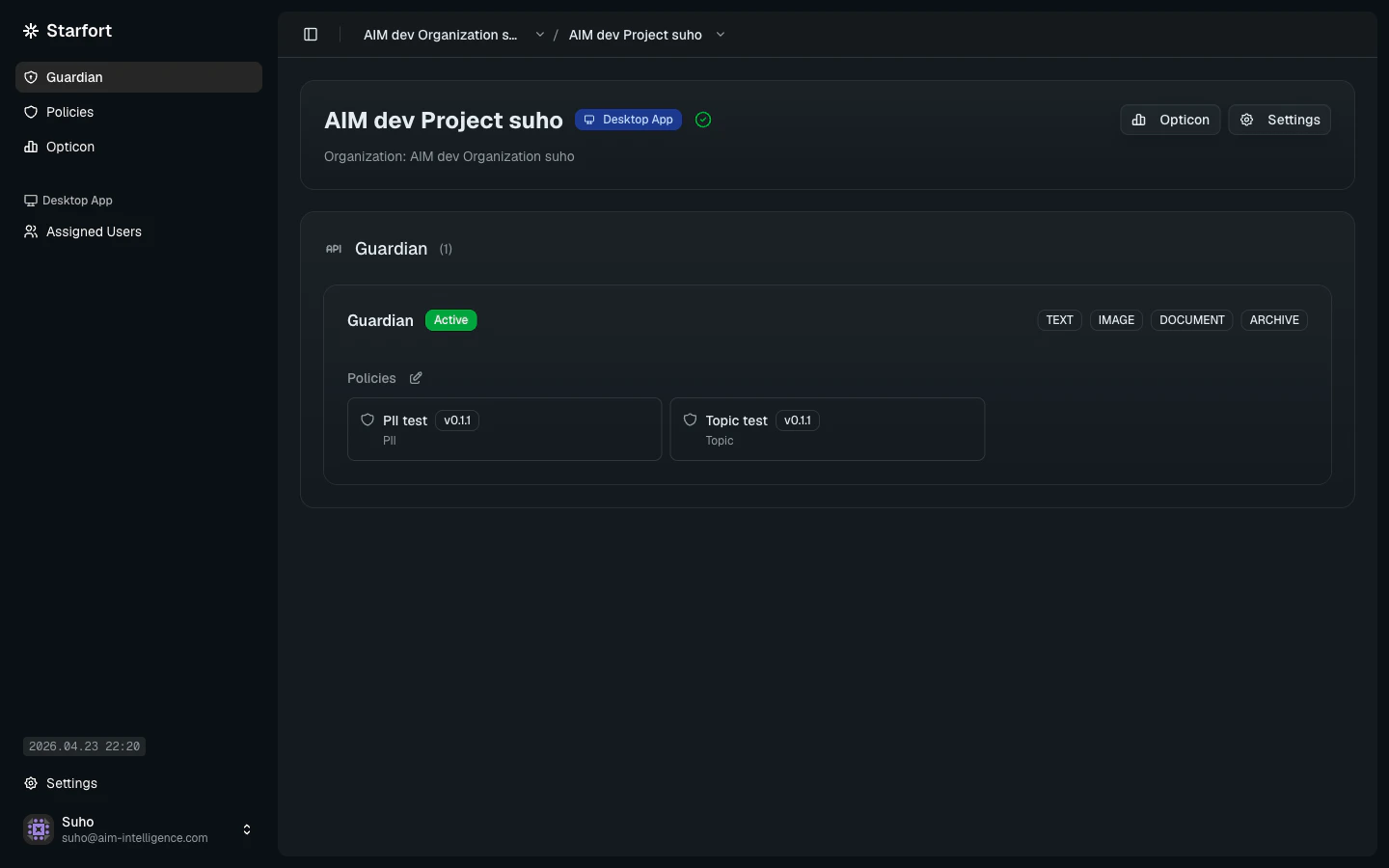
Guardian detail
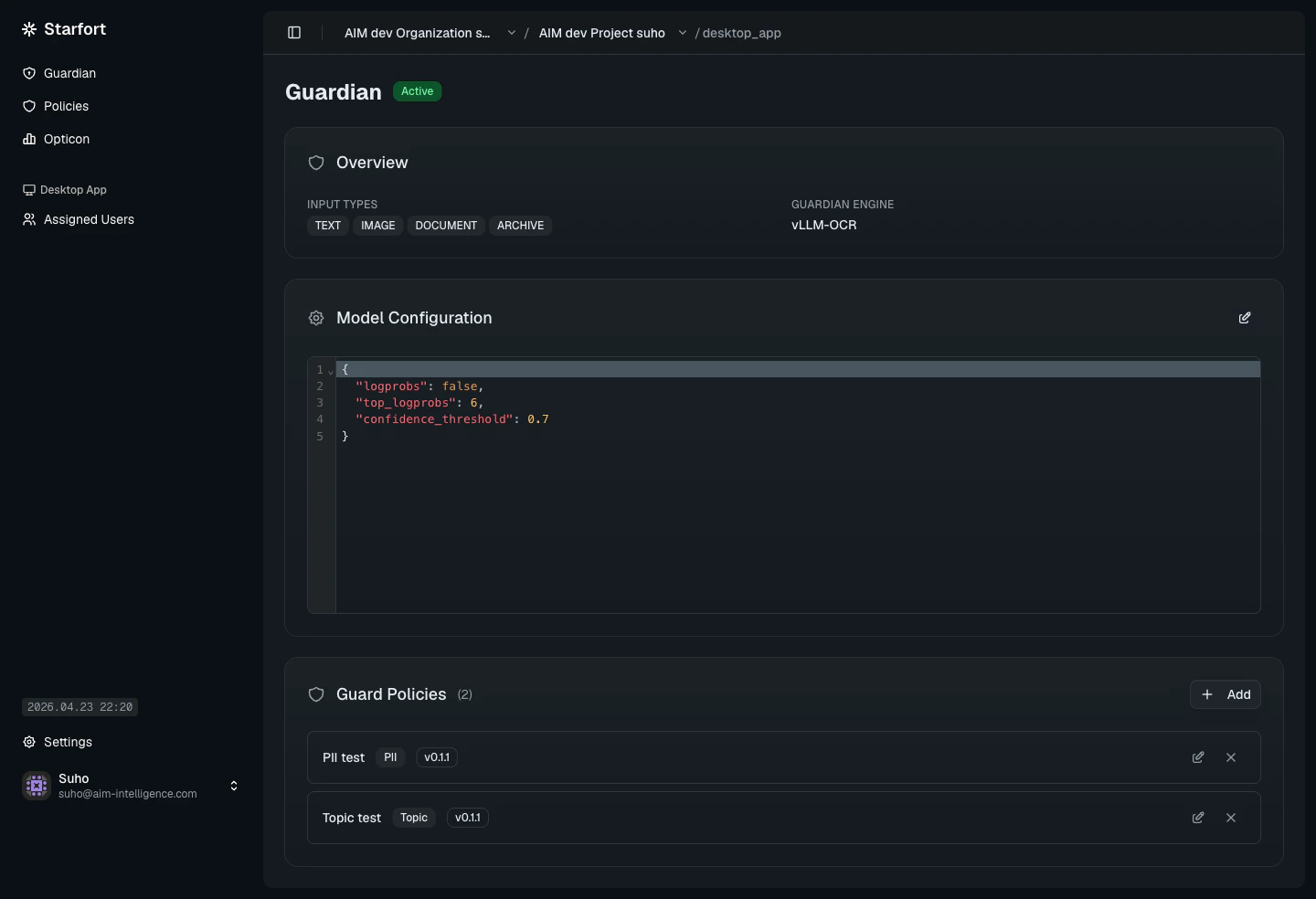
Overview
- Input Types —
TEXT,IMAGE,DOCUMENT, and/orARCHIVE. Requests with a data shape that does not match the bound input types are rejected at the edge. - Guardian Engine — the model backend (e.g.,
vLLM-OCR).
Model Configuration
JSON tuning for the analysis model. Typical fields:Guard Policies
The list of policies attached to this Guardian. Click Add to attach a policy authored in Policies. A Guardian typically carries one PII policy and one Topic policy, but you can mix as needed.Deployment flow
Create a Project
In the Organizations workspace, create a Project and choose
FOR_API or FOR_DESKTOP_APP. The Project type is fixed once created.Author policies
Create the PII and Topic policies your Guardian will use. See Build a Guard Policy.
Test
For
FOR_API projects, issue an API key and call the endpoint. For Desktop App projects, assign end users and confirm traffic is captured.Hand-off
Guard API quickstart
Authentication, request/response shape, and error codes for developers calling the endpoint.