

Create an organization
From Organizations, choose New Organization, give it a name (unique within the company) and an optional description.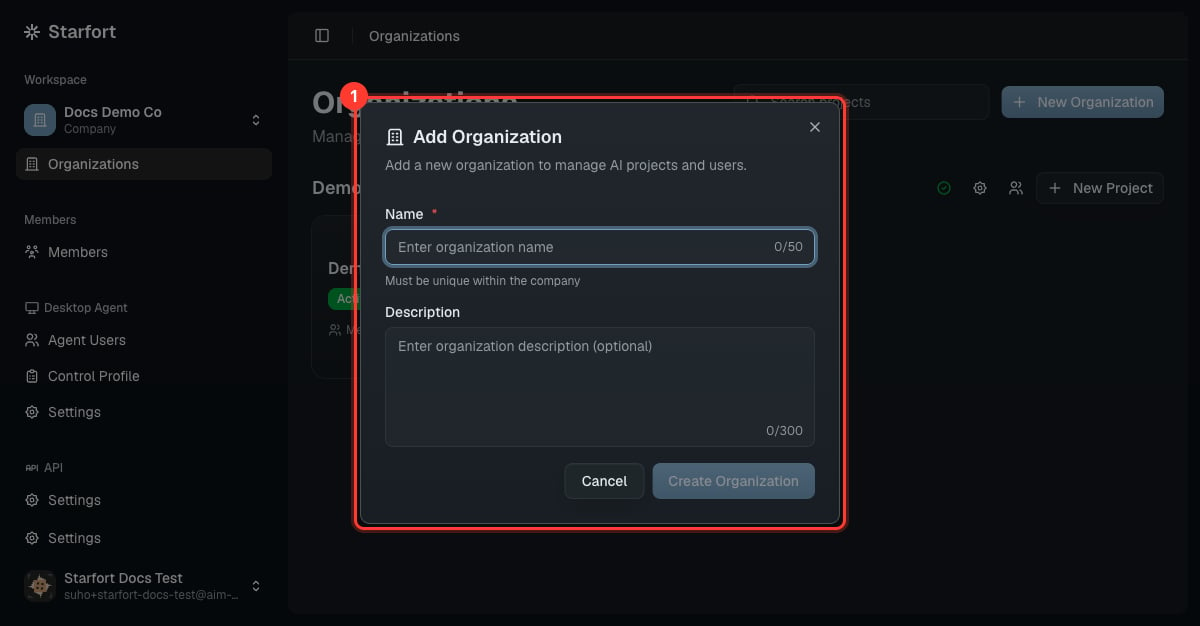
Create an organization
Create a project
On an organization card, choose New Project. Set a name (unique within the organization) and pick the Project Type: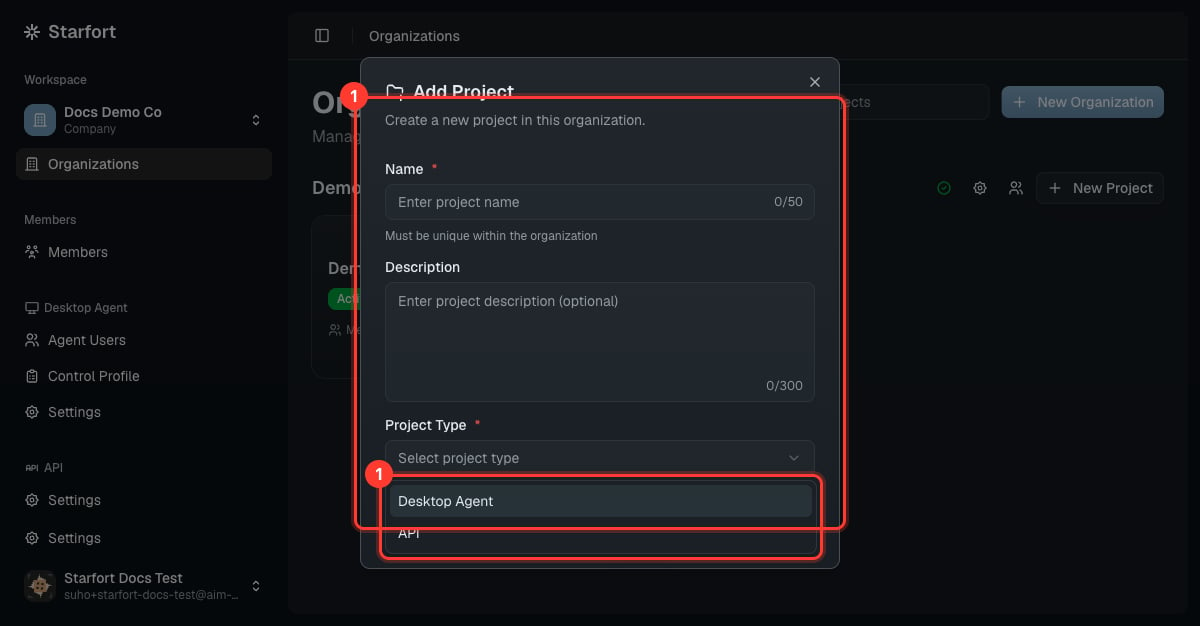
Choose the project type
Project type
The Project Type decides how this project is governed, and it is the most important choice you make here.- Chosen at creation, immutable. You select Desktop Agent or API once; it cannot be changed afterward.
- Only enabled types appear. The dropdown shows only the types your company has turned on as features. If a type is missing, enable it in Company Settings first.
- Per-type quota. Each type has its own project quota, set when the company is bootstrapped and editable in Company Settings — always within the system-wide allowance. When you reach a type’s quota, new projects of that type are blocked until you raise it or delete one.
- A type can’t be turned off while a project of that type still exists — delete its projects first.
A Desktop Agent project automatically gets all of the company’s Control Profiles assigned by default when created. You can narrow that set later — assigning a profile to the project, and mapping it to a specific Guardian, are two separate steps with different permissions.
Open a project
Opening a project shows its Guardians and actions: Create Guardian, Settings, and a link to Opticon. From here you register a Guardian.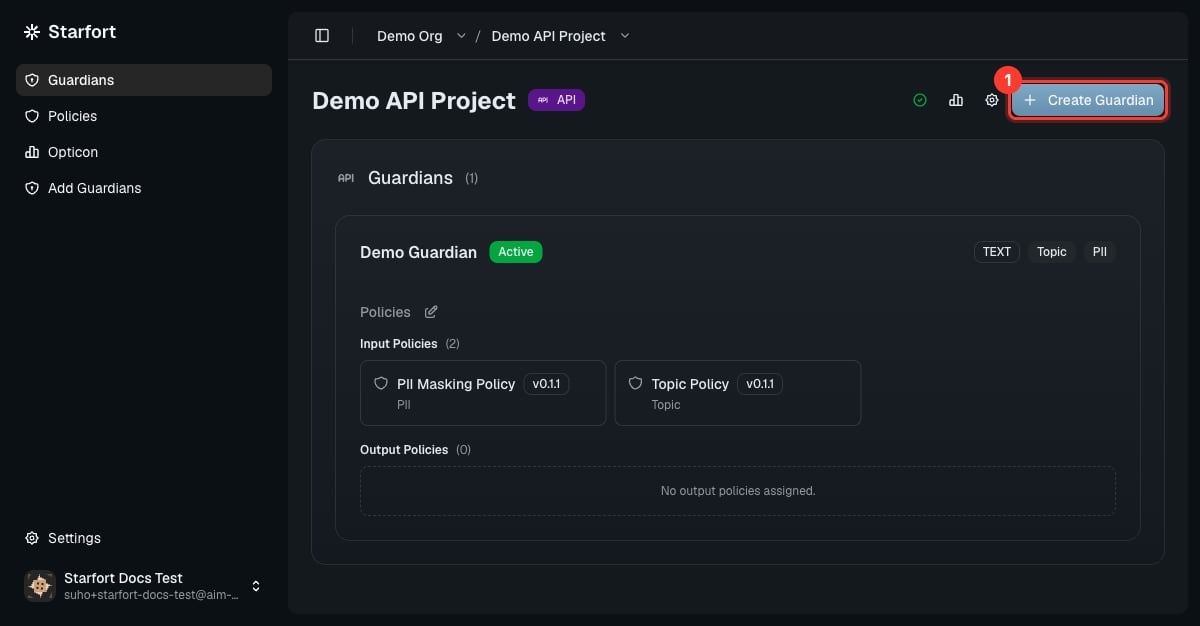
A project's detail page